

Reporting
Use Reporting when a private procedure needs confirmation, comments, or photo evidence during execution.
Reporting only applies to Private published procedures.
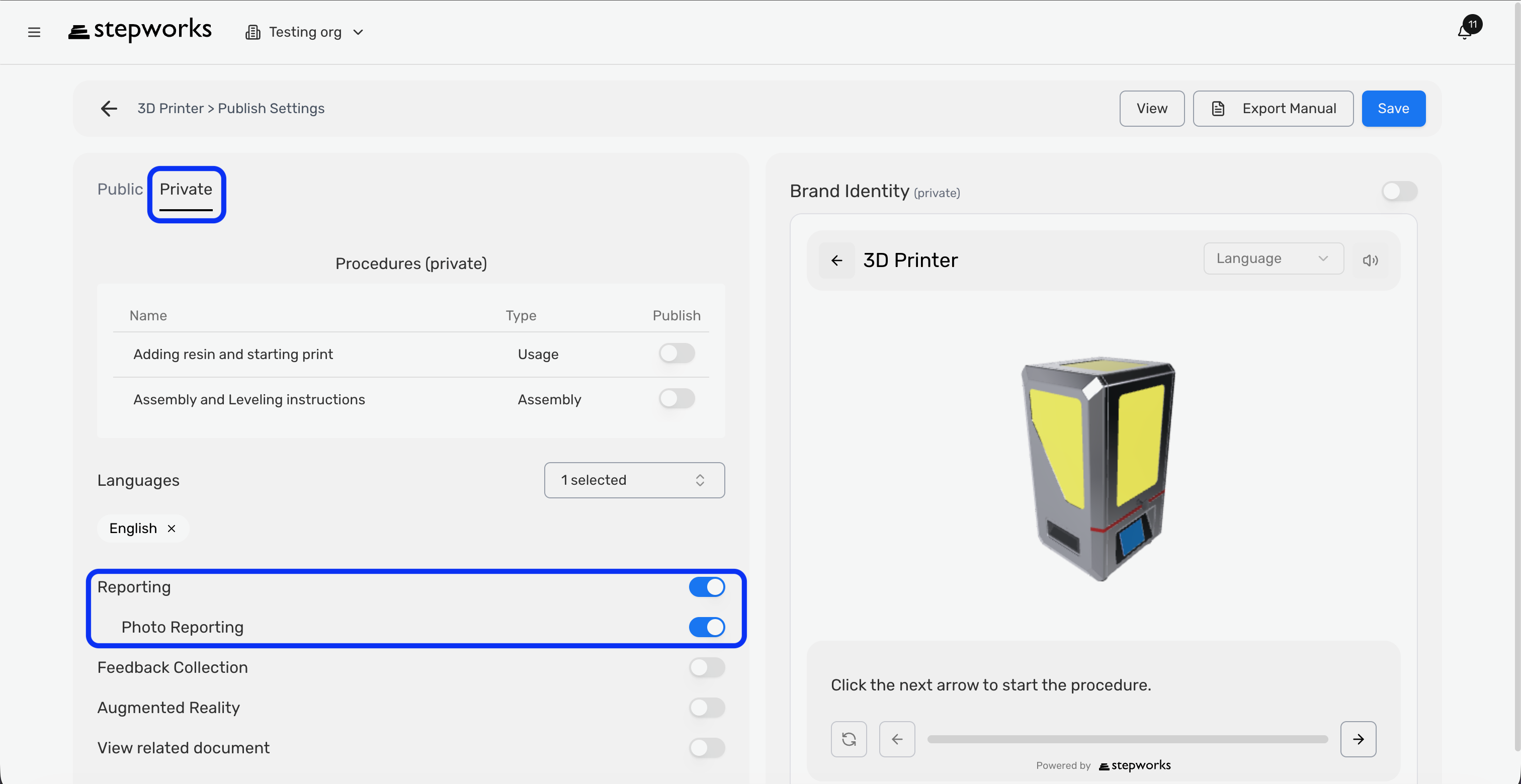
Turn Reporting On
Enable Reporting from Publish Settings
Reporting is a private-viewer feature.
- Open the product in Product Home.
- Click Publish Settings.
- Open the Private tab.
- Turn on Reporting.
- Turn on Photo Reporting if the viewer must also upload images.
- Click Save.
For a maintenance procedure that must be signed off by a technician, enable Reporting. If the technician must upload a photo of the finished work, enable Photo Reporting too.
What The Viewer Can Do
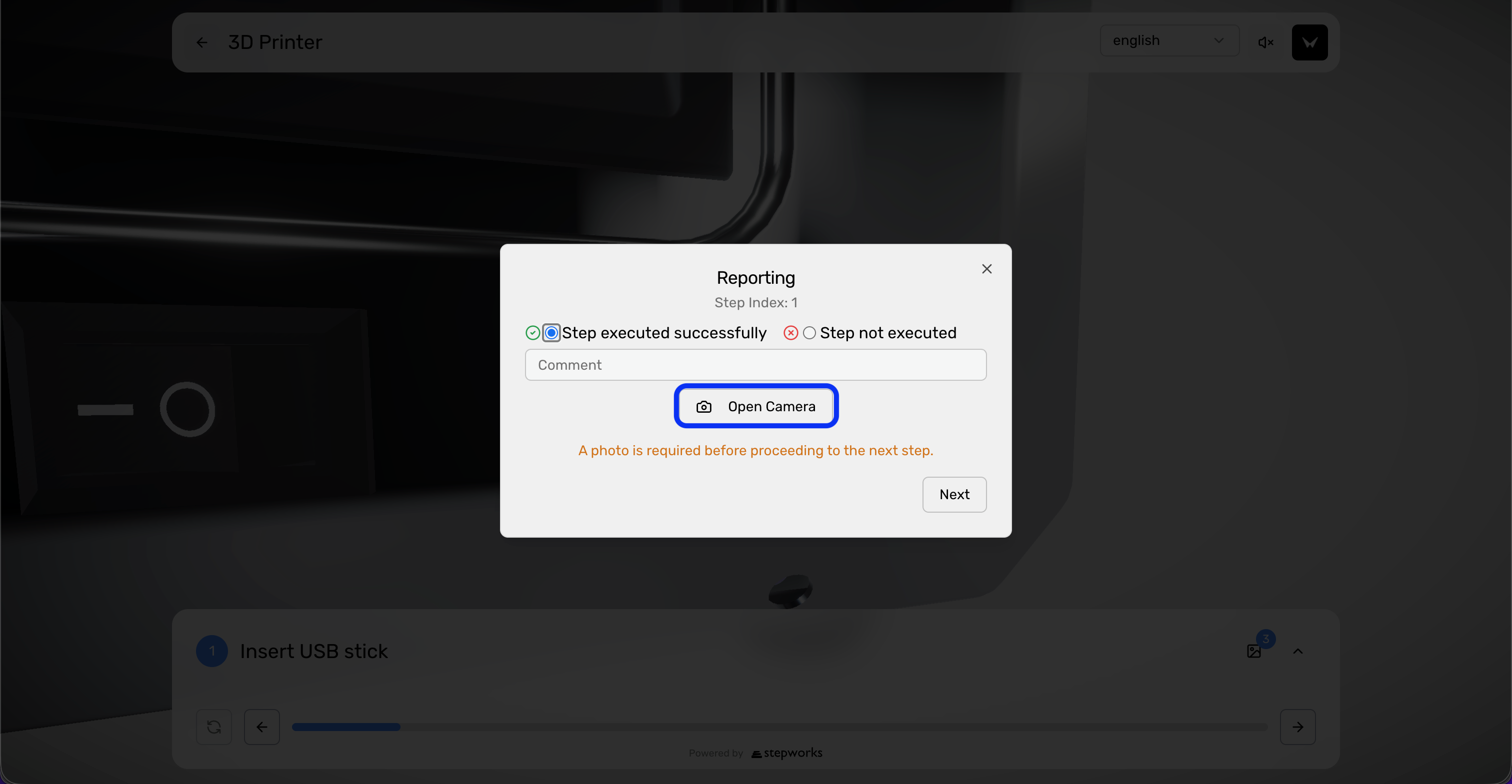
When reporting is enabled, the current viewer can capture:
- step confirmation
- step success or failure
- step comments
- procedure-level comments
- uploaded photos when Photo Reporting is enabled
Understand the private viewer reporting flow
The viewer records evidence as the user moves through the procedure.
- Open the private published procedure.
- Execute the procedure step by step.
- Confirm each step when required.
- Add comments when needed.
- Upload photos if the step requires image evidence.
- Finish the procedure so the execution record is stored.
A field technician can mark a step as completed, write Seal replaced, and upload a photo of the final assembly before moving to the next step.
Review Report History
The private viewer also includes a Report History panel for reviewing earlier private executions directly in the viewing experience.
This is useful when the same device or user needs to compare previous runs of the same procedure.
Review Reporting In Analytics
Open reporting results in analytics
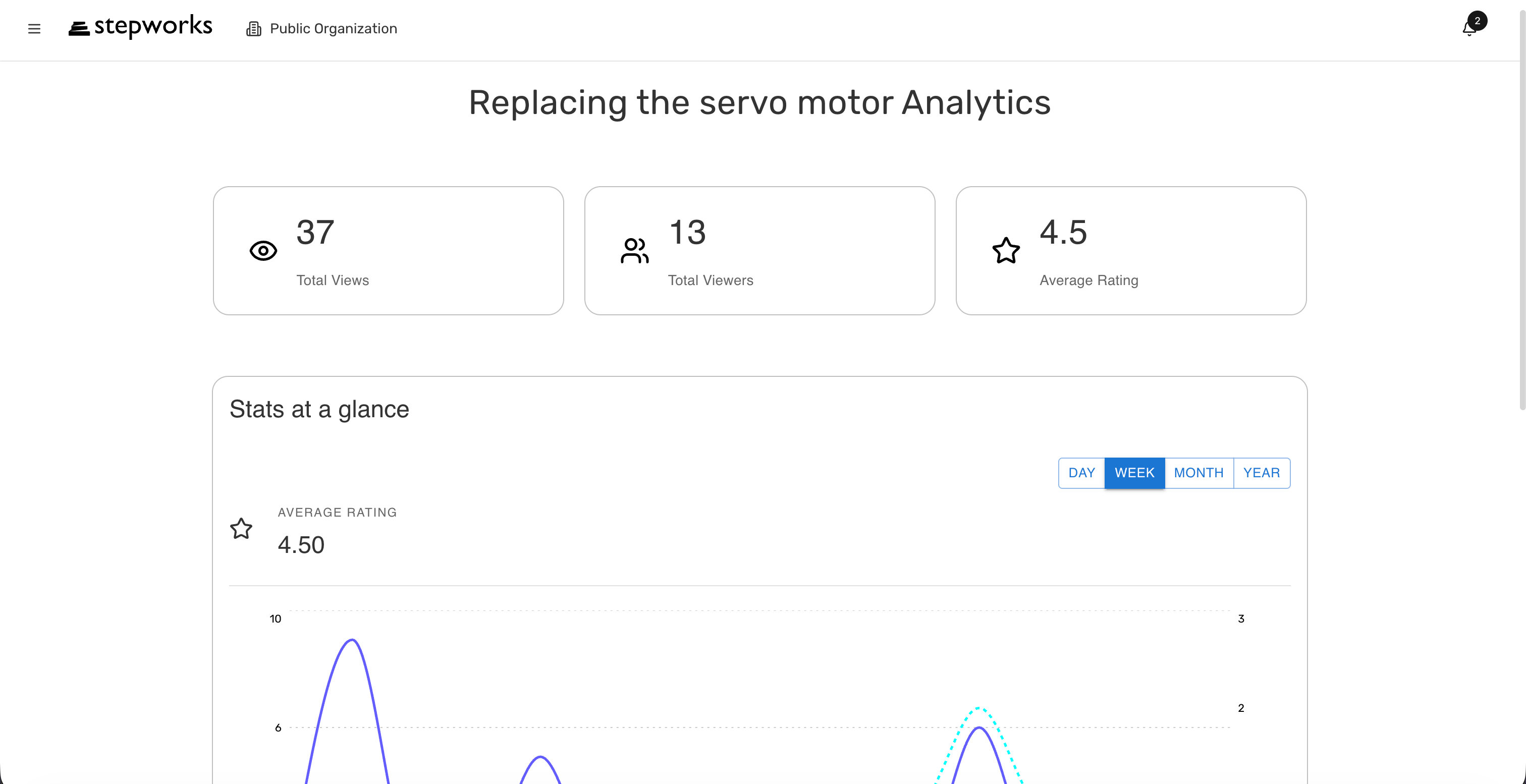
Private analytics is where reporting becomes measurable and exportable.
- Open Dashboard.
- Open the relevant product.
- Open the relevant procedure.
- Switch to the Private view in Procedure Analytics.
- Review execution duration, comments, success/failure state, images, and step-level reporting.
- Export the data to Excel if needed.
If a maintenance team reports repeated failures on the same step, open the private analytics view and compare the comments and images from those runs.
Serial-Number Workflows
Use serial-specific QR codes when many identical units share the same published procedure but each physical unit needs its own maintenance trace.
When you export serial-specific QR codes from Product Settings, each QR opens the viewer with that serial number already embedded in the URL. During execution, TwinWorks stores that serial number with the report record.
This means:
- the operator scans the QR code attached to the exact unit they are working on
- the private viewer can show Report History for that serial number
- analytics and exports keep the execution linked to that specific serial number instead of mixing reports from every unit