
Procedures
A Procedure is the step-by-step experience executed in TwinWorks. Procedures are created from Product Home and edited in the Procedure Editor.
The current workflow supports:
- blank procedures
- generated procedures from product documents
- generated procedures from 3D + voice recording
- generated procedures from video
- batch-generated procedures from suggested document analysis
Procedure Types
The create dialog currently supports:
- Assembly
- Disassembly
- Maintenance
- Usage
- Quality Control
Create One Procedure
Create a blank or generated procedure
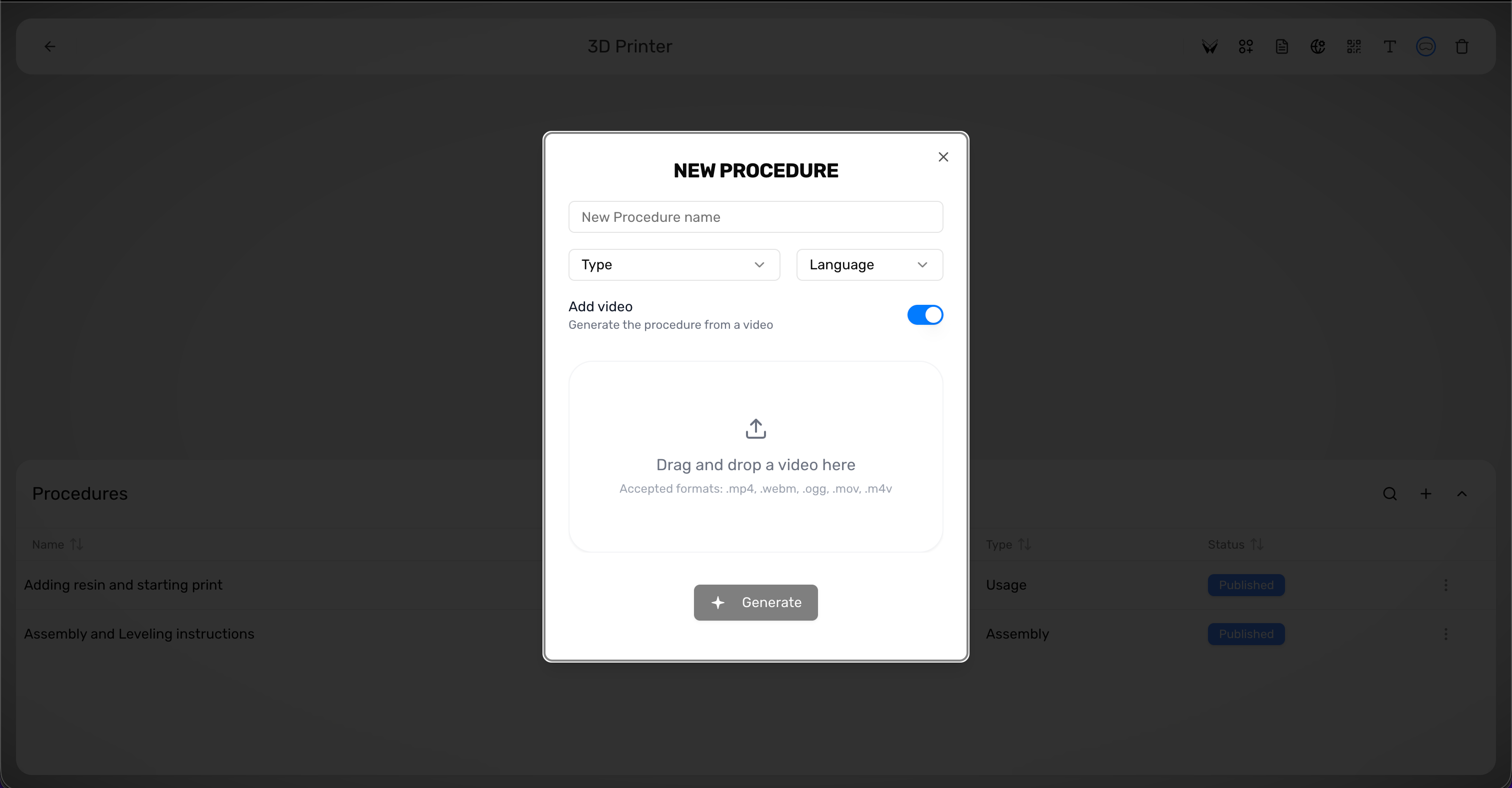
Use Single procedure when you want one procedure only.
- In the procedures table, click Create procedure.
- Choose Single procedure.
- Enter Procedure Name.
- Choose the Type.
- Choose the authoring Language.
- Click Create for a blank procedure.
- Click Generate if the product already has instruction documents.
- If you want to generate from video, turn on Add video, upload the video, and then click Generate.
Create Replace Air Filter, choose Maintenance, choose English, and click Generate if the product manual already explains the filter replacement workflow.
The procedure appears in the table. Generated procedures may remain in Pending while TwinWorks creates the draft.
Create Several Procedures From Manuals
Use Batch create from product documents
Use Batch create when you want TwinWorks to scaffold several procedures at once.
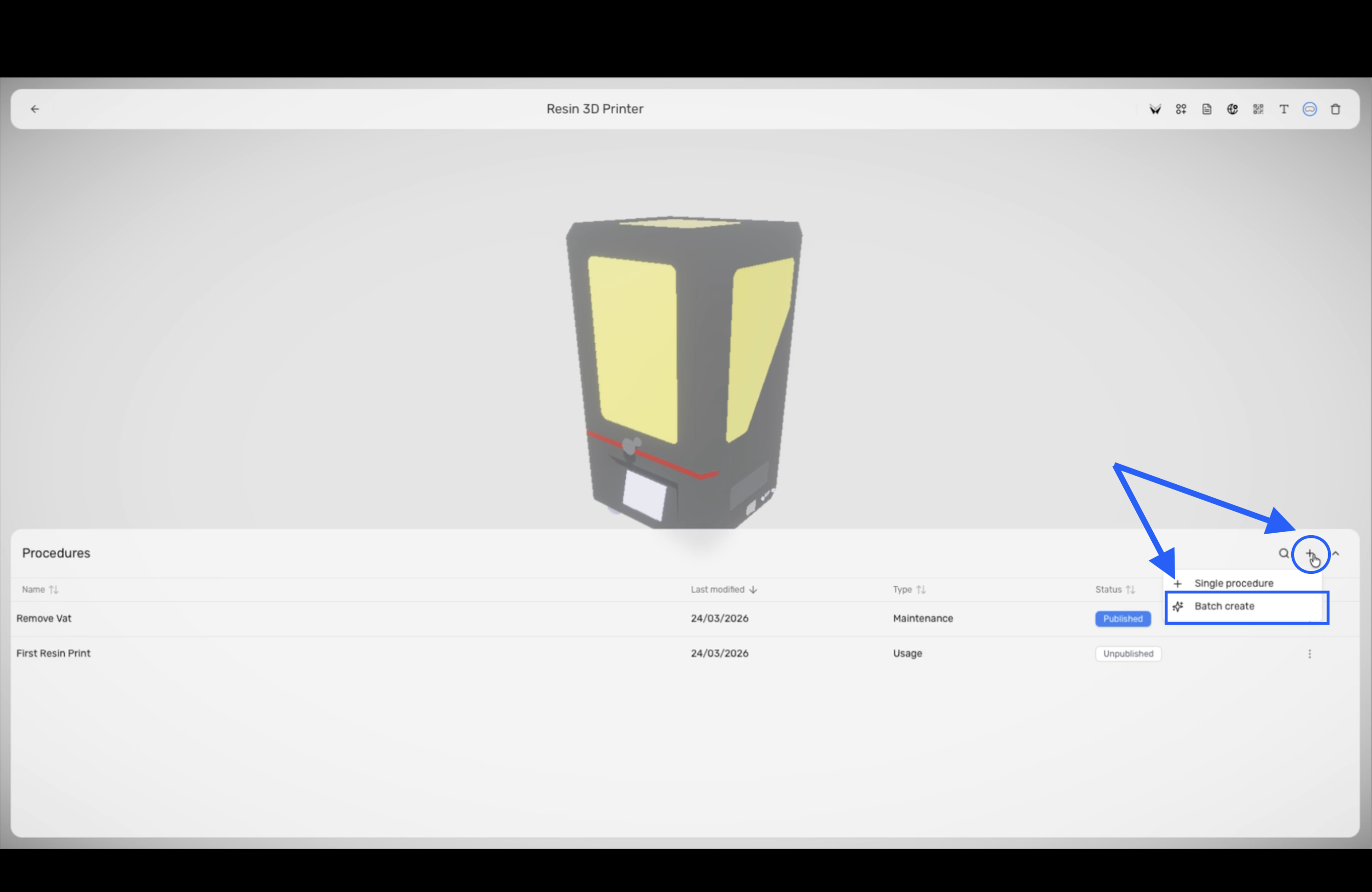
- In the procedures table, click Create procedure.
- Choose Batch create.
- Wait for TwinWorks to analyze the instruction documents.
- Review the suggested procedure titles and types.
- Edit or remove any suggestion that does not belong in the workflow.
- Click Generate Procedures.
A service manual might suggest Install battery, Charge battery, and Replace battery. Remove any duplicates or titles that are too broad before you generate them.
Understand Procedure Status
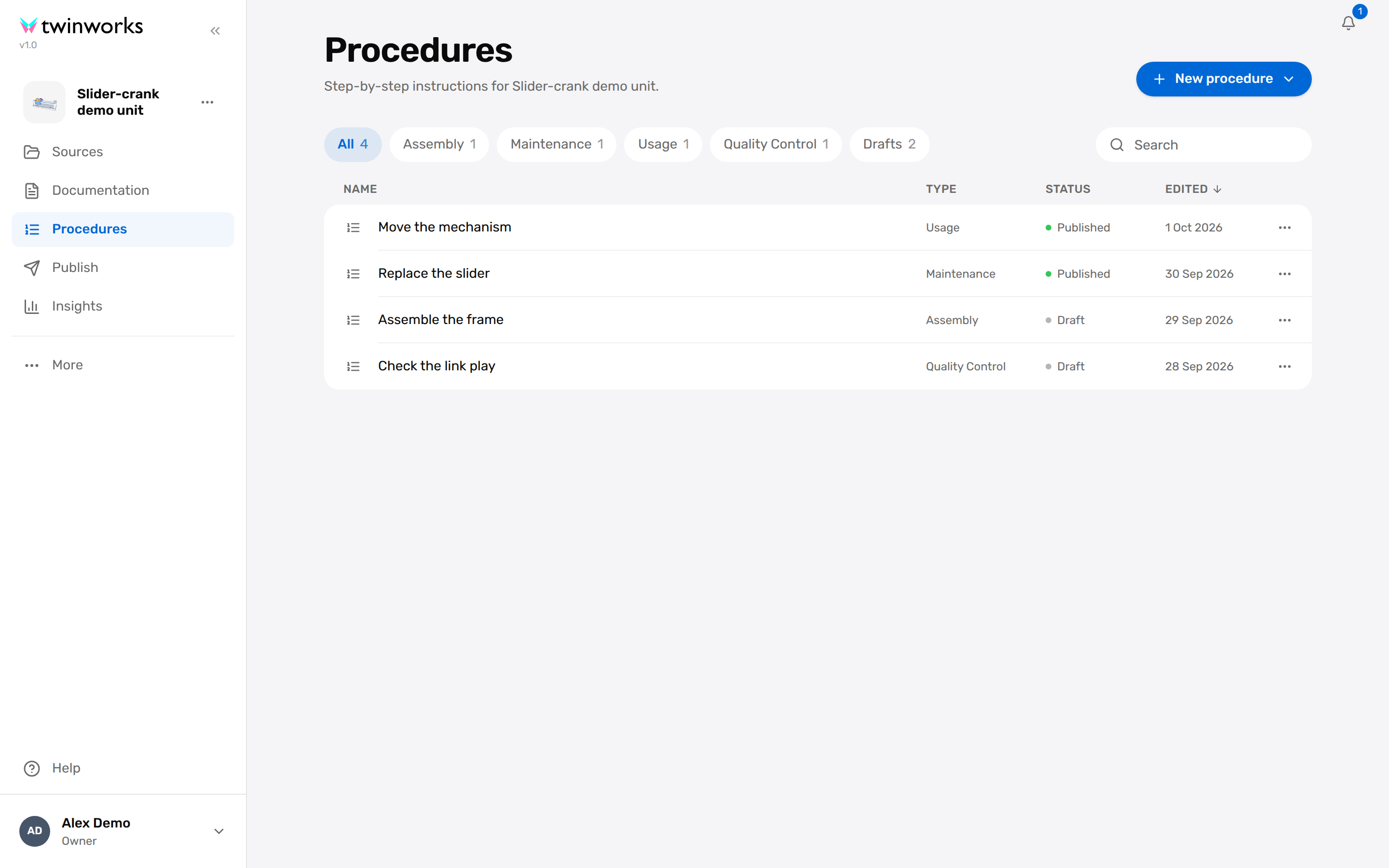
The procedures table can currently show:
- Pending
- Failed - Click to retry
- Published
- Unpublished
Use the table to:
- search procedures
- sort by name, date, type, and status
- open a procedure
- copy a link
- duplicate, rename, or delete a procedure
Edit A Procedure
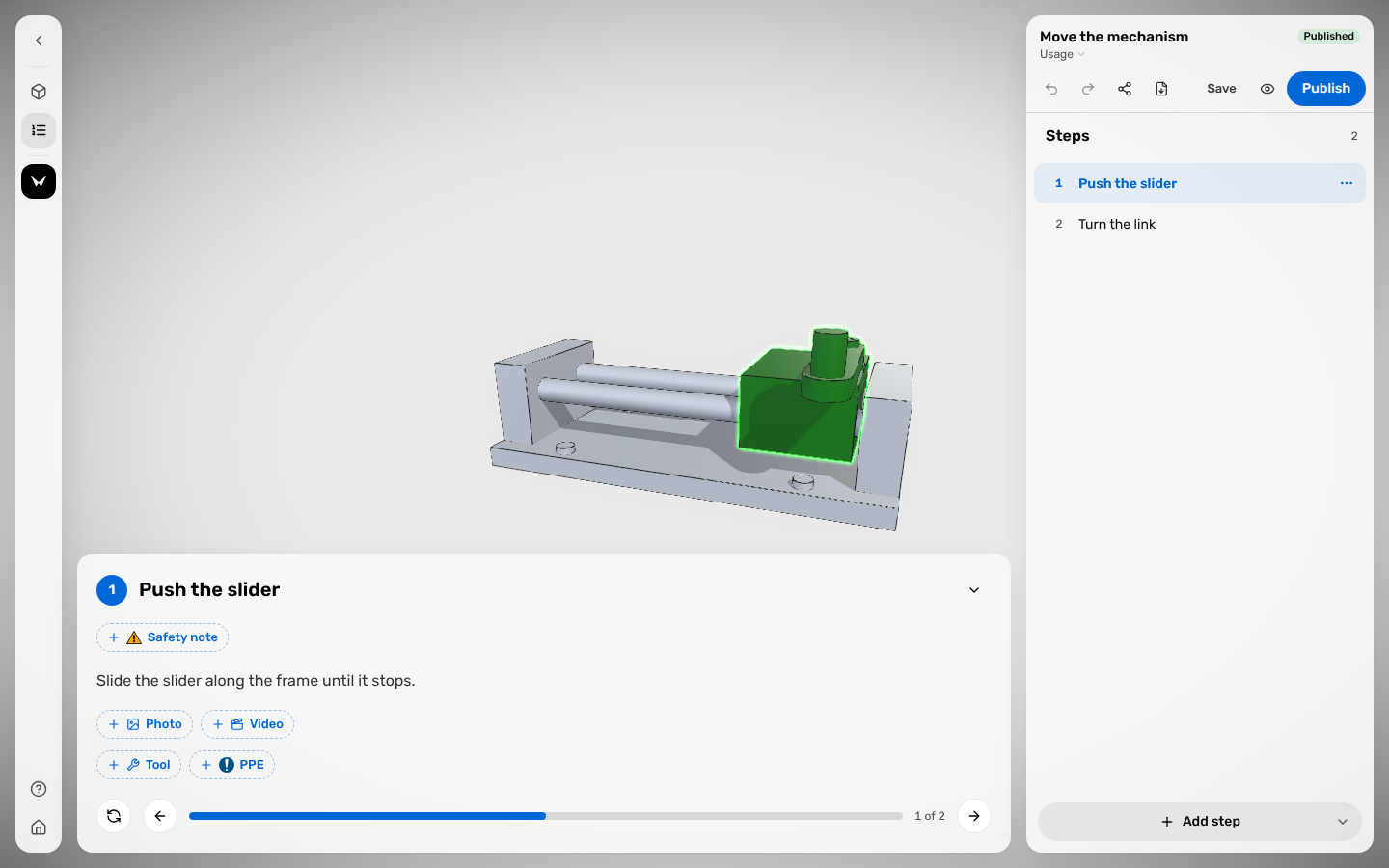
Work in the Procedure Editor
The editor is where you review generated drafts and refine the final user experience.
- Open the procedure from the procedures table.
- Update the procedure name if needed.
- Confirm the procedure type.
- Edit the steps.
- Save manually from the header.
- Review the full flow before you publish it.
If a generated procedure creates five steps but the real workflow needs seven, add the missing steps before you publish.
Record A Procedure Draft
Recording in the Procedure Editor is separate from the Add video option in the create dialog. Use the editor recorder when you want TwinWorks to build a draft from live narration with part selections or from a continuous camera recording.
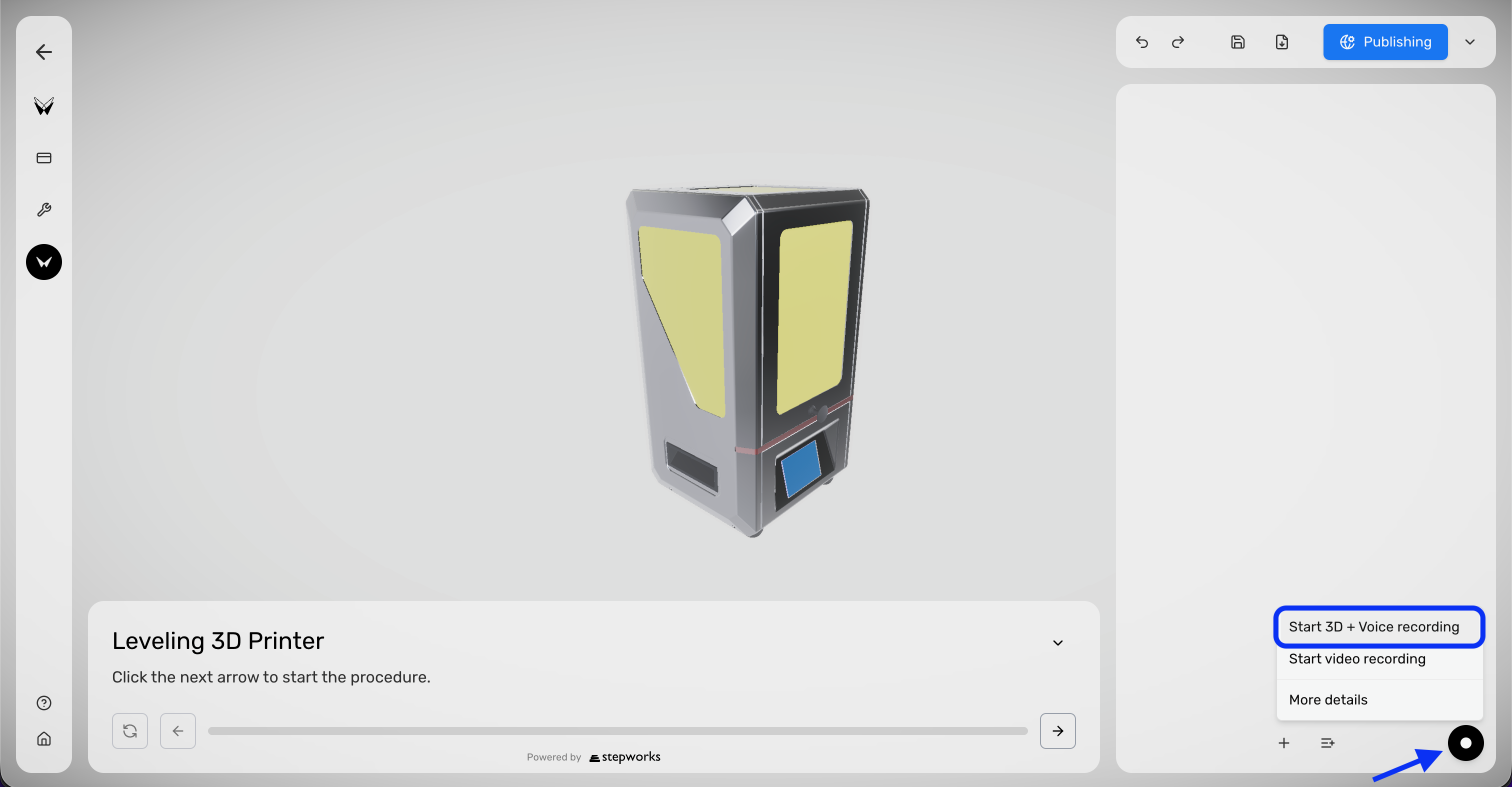
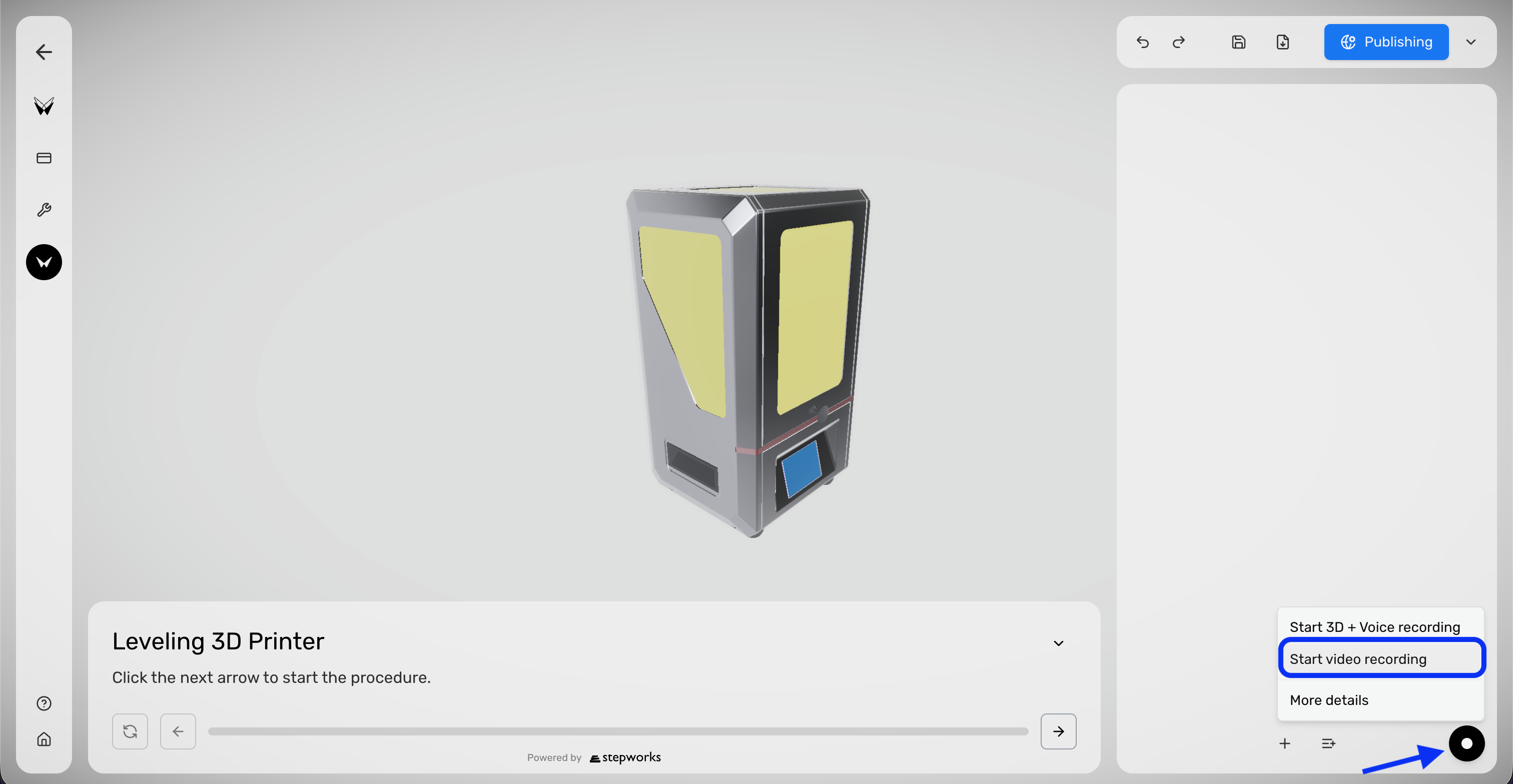
The record menu currently offers:
- Start 3D + Voice recording for microphone audio plus timed part or group selections
- Start video recording for camera and microphone capture with a live preview and boundary markers
- More details for the built-in help dialog
Use 3D + Voice recording
Use this mode when you want to describe the workflow while selecting the related parts or groups.
- Open the procedure in Procedure Editor.
- In the lower-right corner of the step panel, click the black record button.
- Choose Start 3D + Voice recording.
- Allow microphone access if your browser asks.
- Describe the workflow naturally while selecting parts or groups in the 3D view or the assembly hierarchy.
- Use phrases such as
in the next stepwhen you want clearer step separation. - Click the red stop button when you finish, or Cancel if you want to discard the take.
Say Remove the battery cover. In the next step, disconnect the battery cable. while selecting Battery Cover and then Battery Cable.
TwinWorks uploads the audio plus your timed selections and generates an editable draft.
Use video recording
Use this mode when you want to capture one continuous demonstration inside the editor.
- Open the procedure in Procedure Editor.
- Click the black record button and choose Start video recording.
- Allow camera and microphone access if your browser asks.
- Record one continuous take. The editor shows a live preview while recording.
- Click Mark step boundary whenever one step ends and the next begins.
- Use Undo marker if you need to remove the latest boundary.
- Click the red stop button to process the recording, or Cancel to discard it.
Record the full filter replacement from removal to reassembly and add a boundary each time the operator moves to a new action.
TwinWorks uploads the recording for processing and returns an editable draft that should still be reviewed before publication.
While a recording is active, TwinWorks disables normal step editing and add-step controls until you stop or cancel the current take. For browser permissions, see Technical Requirements.
Use The Editor Assistant
Use the Editor Assistant to refine a procedure
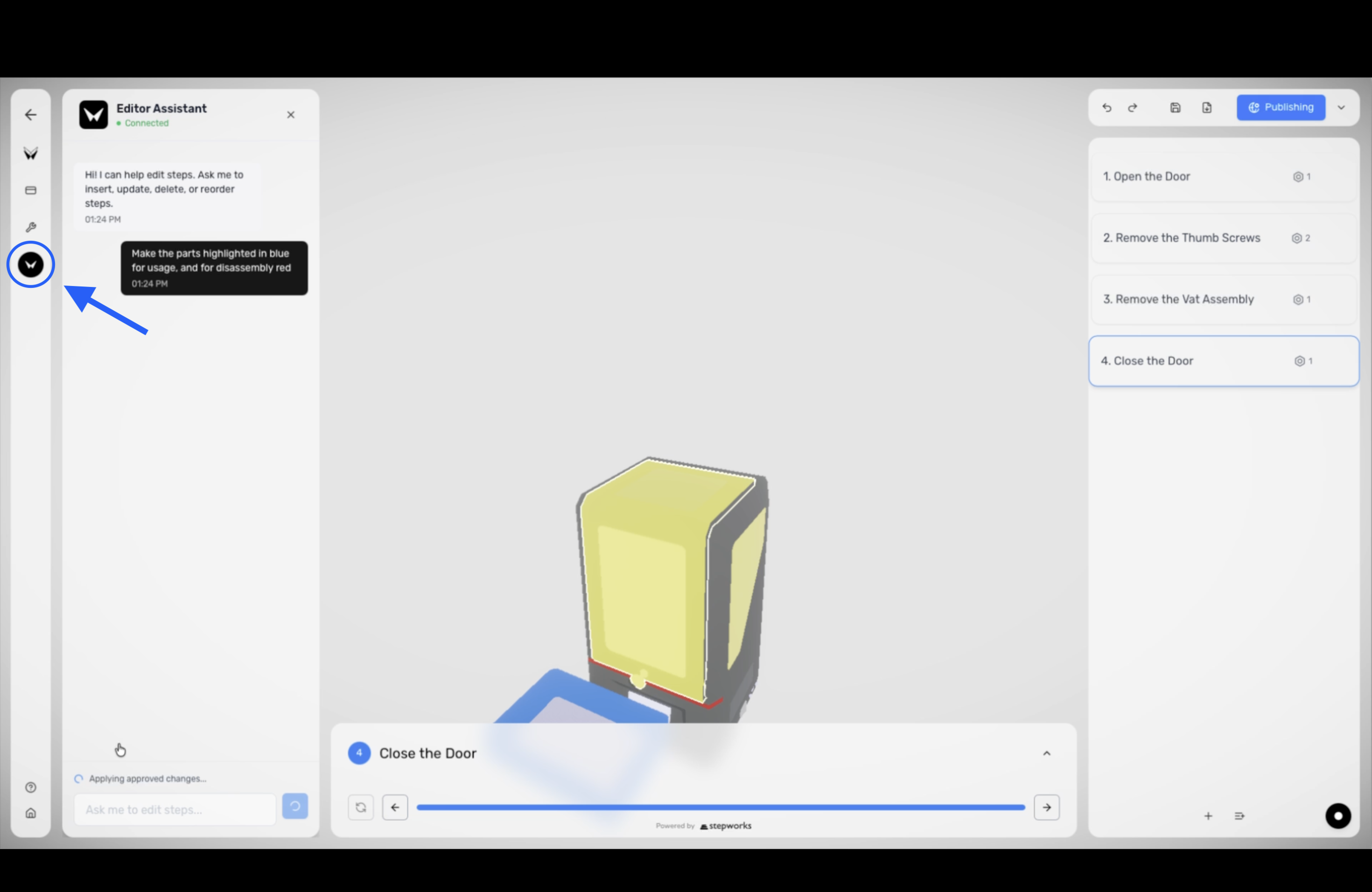
Use the assistant while authoring when you want help inserting, updating, deleting, or reordering steps. You must be signed in and inside an existing procedure.
- Open the procedure in Procedure Editor.
- In the left rail, click the black Assistant button with the Tina icon.
- Ask for the change you want, such as adding a missing step or rewriting a step description.
- Review the assistant response and any citations it returns.
- If the assistant proposes tool actions, approve only the edits you want to apply.
- Review the updated steps in the editor and click Save.
Ask: Insert a safety step before battery removal and rewrite the next step so it tells the operator to disconnect power first.
The approved edits are applied to the current procedure and remain editable before publication.
Work With Steps
In the current data model, each step can include:
- title and description
- linked parts
- part states
- camera viewpoint
- supporting images or video
- annotations and visual cues when your workflow uses them
Generated procedures should always be reviewed before publication.
Work With Step Groups
Step groups allow you to organize steps into logical groups to apply specific settings or constraints to that group of steps.
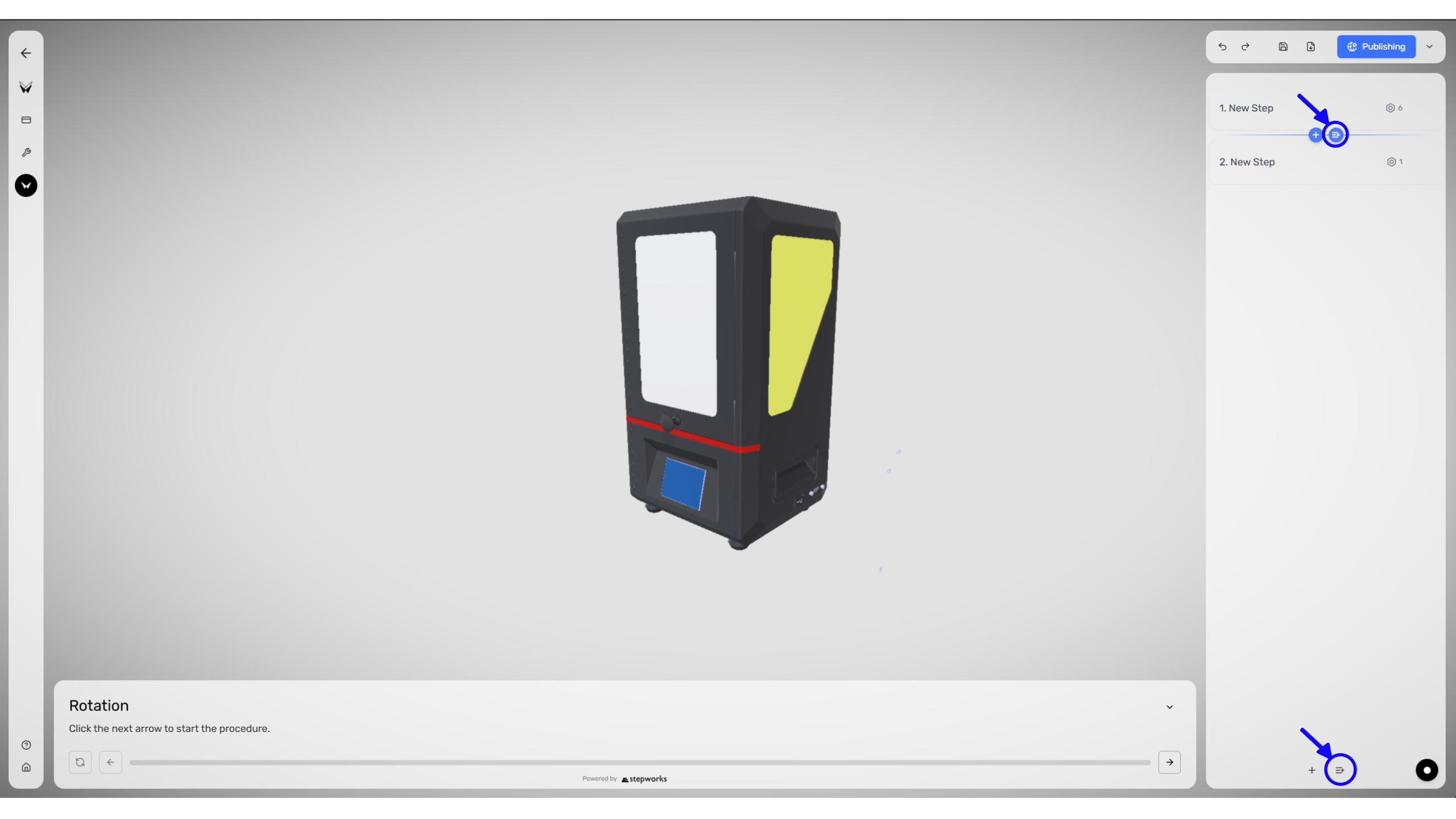
To add steps to the step group, you can drag them inside the area of the card, or add them manually by clicking the "Click here or drag to add steps" area.
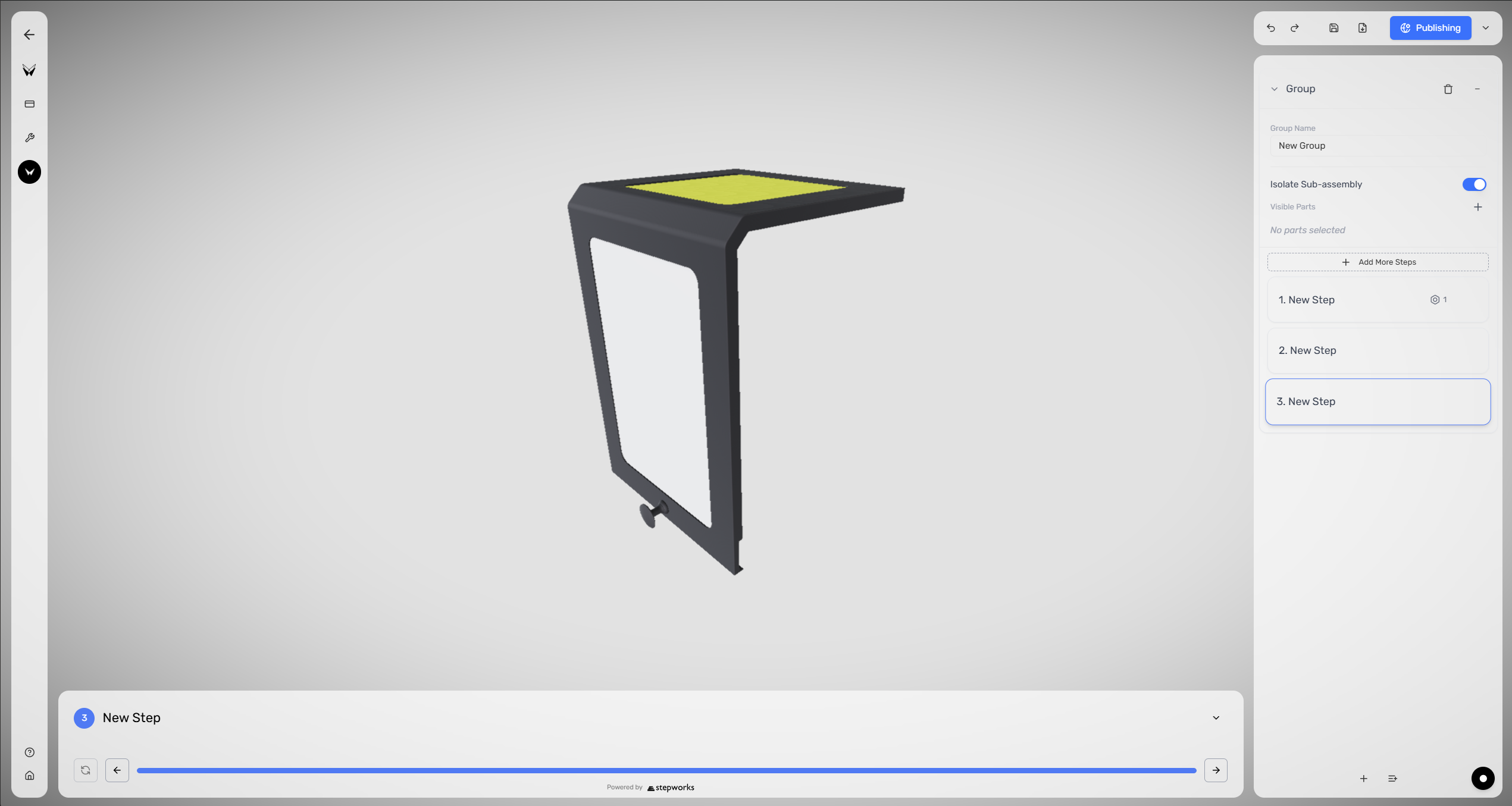
The currently editable properties of step groups include the group's name and Isolate Sub-Assembly toggle, and its list of visible parts.
Isolate a Sub-Assembly using Step Groups
Use the step groups feature in order to perform steps on a sub-assembly.
- Open the procedure in Procedure Editor.
- Create a Step Group, and add the steps needed for the sub-assembly.
- After adding steps to the group, edit the Group Name (if needed) and toggle Isolate Sub-Assembly.
- Now, only the parts that are used in the step groups are the one that are visible, keeping the rest of the parts hidden.
- If you'd like to add parts to be visible that are not used in a step inside the step group, you can add them to the group's list of visible parts.
- When exiting the step group, visibility for all parts returns to the state it was in before entering the group.
With Step Groups, sub-assembly procedures are possible, allowing you to focus on specific parts of the assembly.
Publish From The Editor
Quick publish one procedure
Use quick publish for a single procedure when the product-level publish setup is already correct.
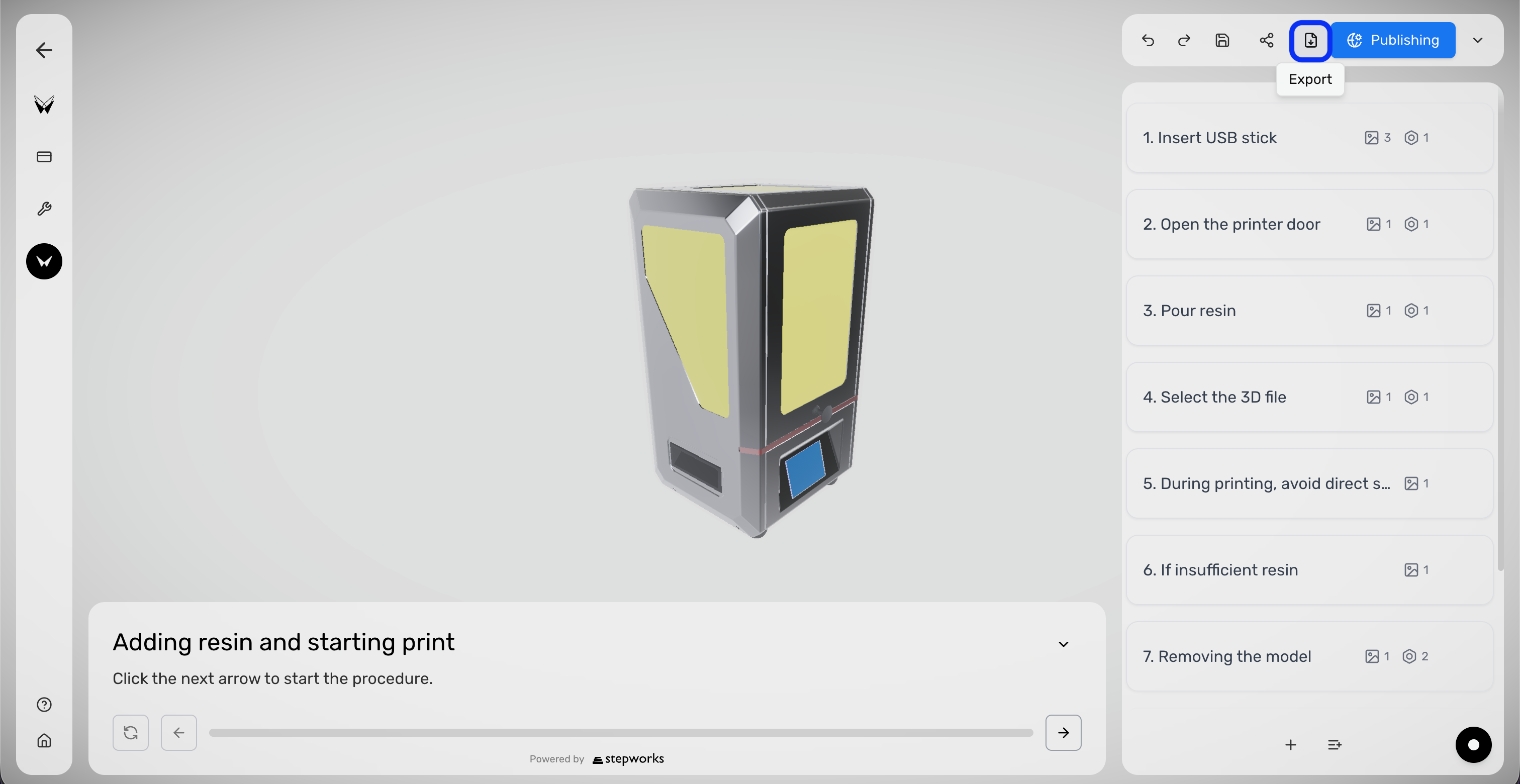
- In the editor header, click Publishing.
- Turn on Public, Private, or both.
- Save the publish change.
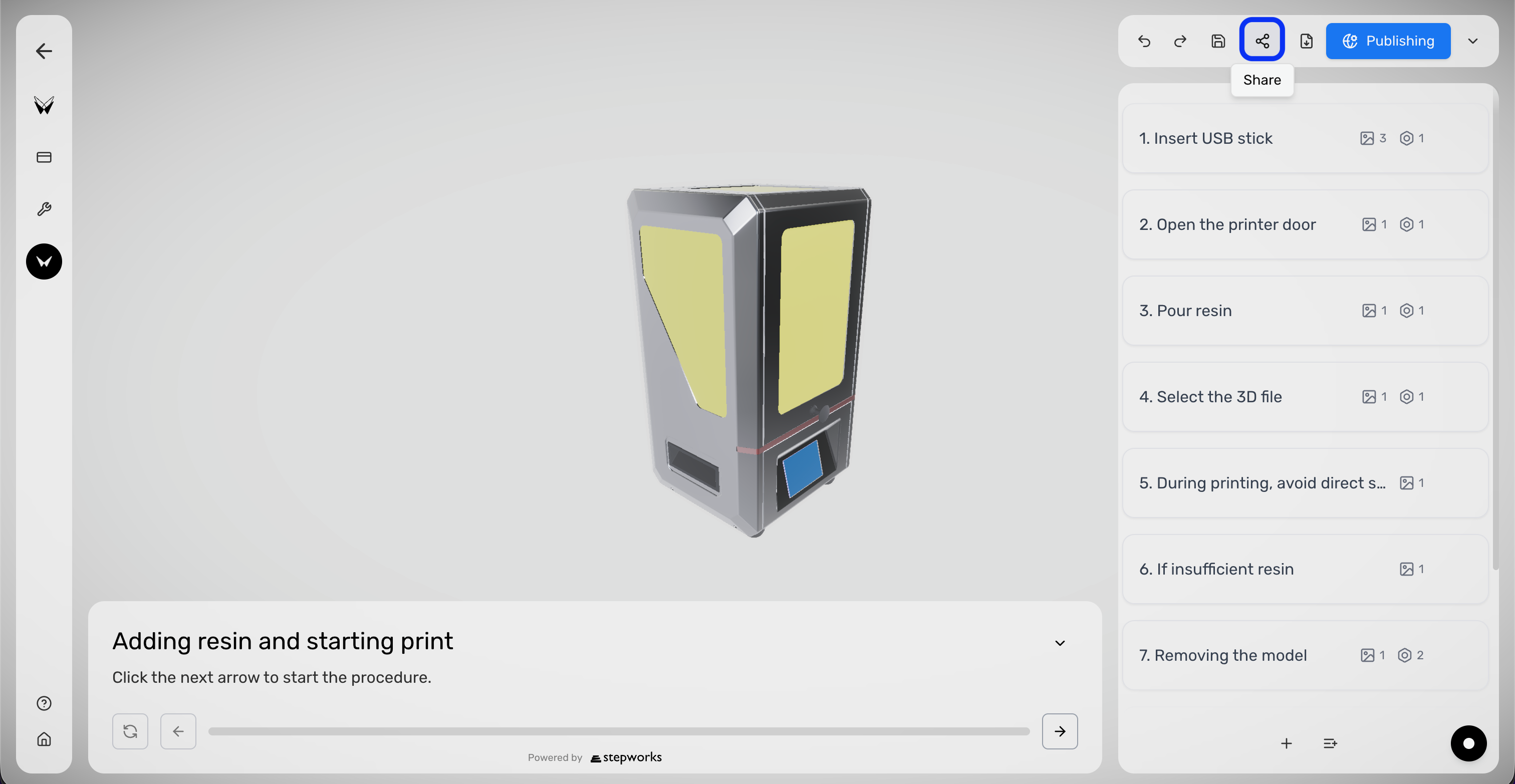
- If the procedure is published, use Share when you need a link or QR code.
If Replace Air Filter should only be used by internal technicians, publish it as Private only.
If you need to change languages, reporting, branding, or the published procedure set for the whole product, go to Publishing Settings.
Share And Export
Once a procedure is published, the current workflow also exposes:
- Share for public/private links, QR download, and embed code where available
- Export for PDF and Word output
Share a published procedure
Use Share when you need a link, QR code, or embed option for one published procedure.
- Open the published procedure in Procedure Editor.
- In the editor header, click Share.
- Copy the public or private link you need.
- Download the QR code or use the embed option if it is available in your workspace.
Copy the private link for internal technicians, or download the QR code so the procedure can be opened on the shop floor.
Export one procedure from the editor
Use Export when you need PDF or Word output for the current procedure.
- Open the published procedure in Procedure Editor.
- In the editor header, click Export.
- Choose the export format you need.
- Wait for TwinWorks to generate the file before sharing it elsewhere.
Export a PDF when a technician needs a printable version, or export Word when the content must be reviewed and edited outside TwinWorks.